The Church Wi-Fi Audit Anyone Can Do
You don't need a network certification to know your church Wi-Fi is struggling. Here's a practical walkthrough any staff member or volunteer can run before Sunday breaks it for you.
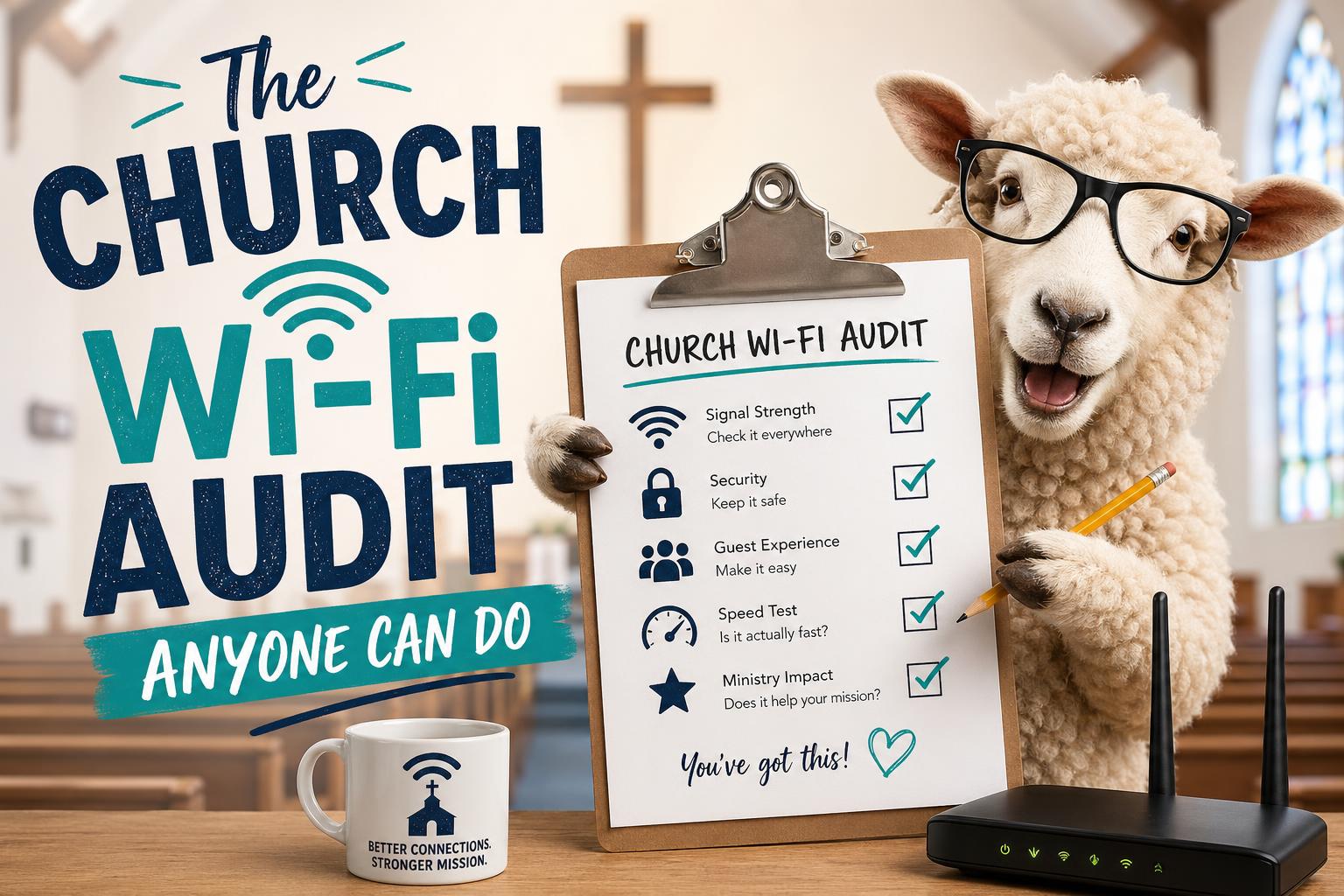
Sunday morning has a way of exposing every weak link in your setup. And nothing unravels faster — or more publicly — than Wi-Fi. The check-in tablets spin. The livestream buffers. Someone’s trying to pull up the sermon notes on stage and the connection just… disappears. You’ve been there.
The good news is you don’t need a network engineer to figure out what’s wrong. You need about an hour, a smartphone, and this walkthrough.
Start With a Signal Walk
Grab your phone, open the Wi-Fi settings, and walk the building. You’re not looking for bars — you’re looking for dead zones and drop-off points.
Walk slowly through every room you actually use: the sanctuary, the lobby, the kids’ wing, the green room, the parking lot if you do outdoor ministry. Watch where your signal strength drops or where your phone switches access points mid-walk (it’ll often lag or stutter when it does).
Free apps like WiFi Analyzer (Android) or Network Analyzer (iOS) will show you signal strength in dBm — a number. Anything better than -65 dBm is solid. Between -65 and -75 is usable but not great. Below -75 and you’re going to have problems. Write it down. Literally. A piece of paper with a rough floor plan sketch works fine.
Check Whether Your Guest Network Is Actually Separate
This one matters more than most people realize. If your guests are on the same network as your staff, your check-in system, and your livestream encoder — they can potentially see those devices. More practically, they can compete with them for bandwidth.
Log into your router or access point admin panel. If you don’t know how, ask whoever set it up. Look for a “Guest Network” or “SSID” section. You want to see a separate network name (SSID) for guests with client isolation turned on. Client isolation means devices on that network can reach the internet but can’t talk to each other or to devices on your main network.
If your church only has one Wi-Fi network and everyone’s on it — guests, staff, the camera system, the check-in iPads — that’s the first thing to fix.
Figure Out How Far That Password Has Traveled
Church passwords spread like potluck recipes. Someone shares it with a volunteer, the volunteer tells their spouse, the spouse’s teenager is now streaming video in the parking lot every Sunday. It happens everywhere.
The question isn’t whether people have shared it — they have. The question is whether it’s causing real problems.
If you have a managed router or access point system (Ubiquiti, Meraki, Cisco, etc.), you can usually see how many devices are connected. More than 50 devices on a Sunday morning for a mid-size church? Worth investigating. If you’re seeing 80+ and you have 200 people in the room, something’s off.
The practical fix: change the main network password once a year, keep a separate guest network with a simpler password you can rotate more often, and consider a QR code on the welcome screen so guests don’t need to ask.
Map Out What’s Actually Competing for Bandwidth
This is the one most churches skip, and it’s usually the reason Sunday mornings feel like a coin flip.
Make a list of every device that needs Wi-Fi during a service:
- Livestream encoder or laptop
- Check-in tablets or computers
- Planning Center or ProPresenter machines
- Stage monitor apps (like Aviom or personal monitor apps)
- Pastor’s tablet or phone for sermon notes
- Confidence monitors
- Any cameras on Wi-Fi
- Volunteer phones running apps
Now ask: are any of these on the same network as 200 guests and their phones?
If your livestream encoder is fighting for bandwidth against a lobby full of people checking Instagram during announcements, that’s your problem. Critical ministry devices — especially anything touching your livestream — should be on a dedicated VLAN or at minimum a separate SSID that guests can’t access.
Define What “Good Enough” Actually Means for Your Church
Here’s where people get stuck. They don’t know what they’re aiming for, so they can’t tell if they’ve hit it.
A rough baseline for a healthy church network:
- Livestream: 5–10 Mbps upload, stable, with no competing traffic on that connection
- Check-in: Any reliable connection works — it’s low bandwidth, but it needs to be consistent
- Staff and volunteers: 10–25 Mbps down is plenty for most ministry applications
- Guests: Enough to browse and check in to social media — you’re not running a hotel, but you want it to work
Run a speed test at fast.com or speedtest.net from the spots where your critical devices live. Not from your office. From the actual location where the device sits on Sunday morning. That number is what matters.
If your upload speed from the livestream booth is 2 Mbps and you’re trying to push a 720p stream, you’ve found your problem.
One Last Thing Before You Call It Done
Proverbs 27:23 says, “Know well the condition of your flocks, and give attention to your herds.” It’s an agricultural metaphor, but it maps pretty cleanly to church infrastructure. You can’t fix what you haven’t looked at.
This audit won’t solve every problem — some issues need a real network professional. But it will tell you where the problems are, which is half the battle. And it gives you something concrete to hand to whoever does the fixing.
Run it once. Write down what you find. You’ll be glad you did before the next big Sunday rolls around.